
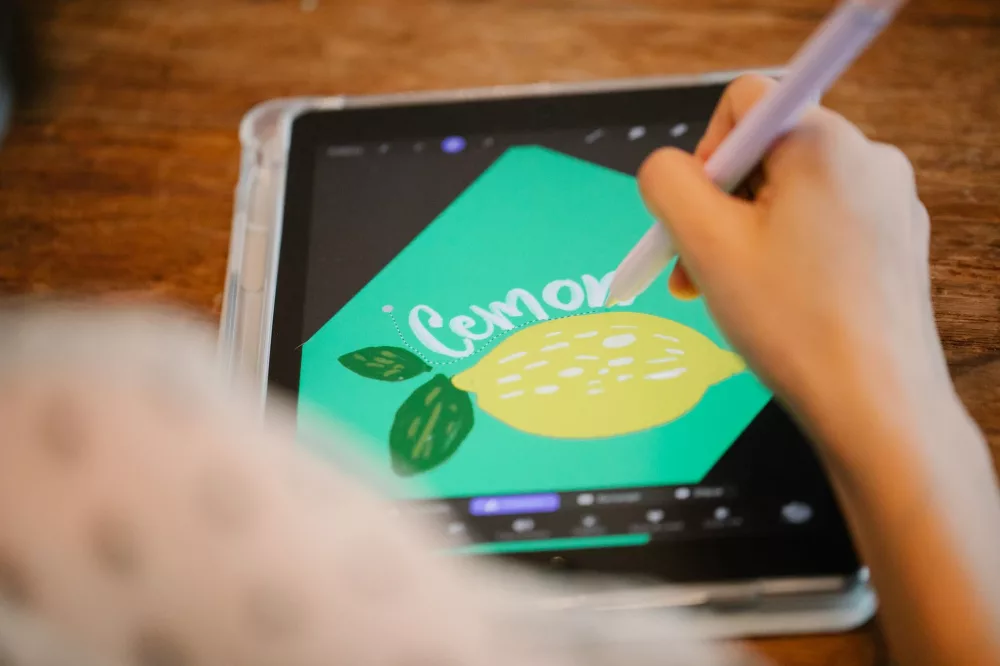
It's a question I hear all the time in digital art communities: "Can I get Procreate for my PC?" I completely understand the yearning. Procreate has truly revolutionized digital illustration for so many, myself included. Its intuitive interface, powerful brush engine, and seamless integration with the Apple Pencil on an iPad make it an absolute dream for artists.
However, let's get straight to the point right away so there's no misunderstanding: there is no official version of Procreate for PC or Mac. Procreate is, and always has been, an exclusive application for Apple's iPad. This isn't just a marketing quirk; it's a fundamental aspect of how the software was developed, designed from the ground up to leverage the unique hardware and software ecosystem of the iPad and the Apple Pencil.
Why Procreate Isn't on PC (And Why It's So Good on iPad)
You might be wondering why Savage Interactive, the developers behind Procreate, has stuck so rigidly to the iPad ecosystem. I think it comes down to several key factors that have made the app so successful:
- Hardware Synergy: Procreate is incredibly optimized for the iPad's hardware, especially its GPU, and the Apple Pencil. This tight integration means minimal lag, precise pressure sensitivity, and a fluid drawing experience that's hard to replicate on a diverse range of PC hardware configurations.
- iOS/iPadOS Ecosystem: The app takes full advantage of iPadOS features, like drag-and-drop, split view, and quick access gestures. Developing for a single, controlled environment allows developers to push boundaries without worrying about compatibility issues across countless different operating systems and hardware setups.
- User Experience: The tactile experience of drawing directly on a screen with the Apple Pencil is central to Procreate's appeal. While you can connect drawing tablets to a PC, it's a different workflow than direct screen interaction, which is what Procreate excels at.
For me, using Procreate feels incredibly natural, almost like drawing on paper. That's a huge part of its charm and why so many artists, including myself, wish they could just port that magic over to a desktop.
So, What Are the Best Alternatives for PC Artists?
Okay, so we've established that Procreate isn't making its way to your Windows desktop or Linux machine anytime soon. But don't despair! The world of digital art software is vast and brimming with incredible tools that can absolutely rival, and in some areas even surpass, Procreate's capabilities. I've spent years exploring different programs, and I can confidently say you'll find something that fits your workflow. Here are my top recommendations:
1. Clip Studio Paint (Formerly Manga Studio)
If you ask me for the closest experience to Procreate on a desktop, Clip Studio Paint (CSP) is usually my first suggestion. It's a powerhouse, and it's my daily driver on PC for a reason. Available for Windows, macOS, Android, iOS, and iPadOS, it offers a consistent experience across platforms if you happen to use both a PC and an iPad.
- Brush Engine: CSP's brush engine is phenomenal. It's highly customizable, with thousands of brushes available for download from the Clip Studio ASSETS store, many of which are free. You'll find everything from realistic paint textures to specialized comic book tools.
- Comic & Manga Tools: This software truly shines for sequential art. It has dedicated tools for panel creation, speech bubbles, perspective rulers, and 3D model import for posing references.
- Animation: Yes, it even has robust animation capabilities, from frame-by-frame raster animation to limited vector animation.
- One-time Purchase (or Subscription): You can buy a one-time license for Clip Studio Paint Pro or EX, or opt for a monthly subscription. I recommend the one-time purchase if you're serious about using it long-term.
I find its interface clean and customizable, and the performance is usually excellent, even on older machines.
2. Adobe Photoshop
Photoshop is the industry standard for a reason. It's incredibly powerful and versatile, going far beyond just painting. If you're looking for a professional-grade tool that can handle anything you throw at it, Photoshop is a solid choice.
- Unmatched Versatility: It excels in digital painting, photo manipulation, graphic design, and much more. You're not just getting a painting app; you're getting a whole creative suite.
- Extensive Brush Support: Photoshop has an endless supply of custom brushes, both free and paid. Its brush engine is sophisticated, allowing for complex textures and effects.
- Layer Management & Non-Destructive Editing: Its layer system is legendary, offering unparalleled control and non-destructive editing workflows.
The main drawback for some is the subscription-based model. It's part of the Adobe Creative Cloud, so you'll pay a monthly fee. However, for many professionals, it's an indispensable tool.
3. Krita
If you're on a budget (or just love open-source software), Krita is an absolute gem. It's a free and open-source painting program developed by artists, for artists.
- Free and Open-Source: This is a huge advantage for many. You get professional-grade features without spending a dime.
- Excellent Brush Engine: Krita boasts a fantastic and highly customizable brush engine. It's great for simulating traditional media, creating textures, and everything in between.
- Animation Features: Like CSP, Krita also offers frame-by-frame animation tools, making it a powerful choice for animators on a budget.
- Cross-Platform: Available for Windows, macOS, and Linux.
I've used Krita extensively, and I'm consistently impressed by its capabilities. The community support is also fantastic.
4. Affinity Photo / Affinity Designer
Serif's Affinity suite offers a fantastic alternative to Adobe's subscription model, with a one-time purchase fee for each application. Affinity Photo is their raster graphics editor, most comparable to Photoshop, while Affinity Designer is a vector graphic editor, like Adobe Illustrator.
- One-time Purchase: No subscriptions here! Pay once and own the software forever.
- Powerful Tools: Both Photo and Designer are incredibly robust, offering professional-level features for painting, photo editing, and vector illustration.
- Performance: They're known for being fast and responsive, even with large files.
- iPad Versions: Like CSP, Affinity also offers excellent iPad versions of their software, allowing for seamless workflow transitions.
Many artists are making the switch to Affinity due to its strong feature set and compelling pricing model.
5. Corel Painter
For those who really want to simulate traditional media, Corel Painter is still the king. It specializes in hyper-realistic brushes that mimic oils, watercolors, pastels, and more.
- Unrivaled Natural Media Simulation: Its brush engine is specifically designed to replicate the look and feel of traditional art materials. If you miss the tactile experience of real paint, Painter comes incredibly close.
- Extensive Brush Library: Comes with hundreds of brushes, and thousands more can be created or imported.
It can be a bit more resource-intensive and has a steeper learning curve than some others, but for a specific niche, it's truly outstanding.
What About Emulators? Should I Try Running Procreate on a PC Emulator?
I get this question often, and my short answer is generally: don't bother. While theoretically you could try running an iOS emulator on your PC, it's not a viable solution for several reasons:
- Performance Issues: Emulators are notoriously resource-intensive. Running a complex app like Procreate through an emulator would likely result in extremely poor performance, lag, and crashes.
- Hardware Limitations: An emulator can't magically give your PC the exact hardware capabilities of an iPad, especially the precise pen input and GPU optimization that Procreate relies on.
- Legal & Licensing: Running copyrighted software like Procreate outside its intended platform via an emulator can venture into legally gray areas.
- Poor User Experience: You'd be trying to interact with an iPad interface using a mouse and keyboard, which completely defeats the purpose of Procreate's touch-first design.
Trust me, the frustration you'd experience trying to make that work isn't worth it. Focus on native PC applications instead.
Choosing Your PC Digital Art Weapon
When you're sifting through these options, I recommend considering a few things:
- Your Budget: Free (Krita, Sketchbook) to one-time purchase (CSP, Affinity) to subscription (Photoshop, Painter).
- Your Primary Artistic Focus: Are you mostly painting? Comics? Animation? Photo manipulation?
- Your Skill Level: Some programs have a gentler learning curve than others.
- Your Hardware: While most modern PCs can handle these, some are more demanding than others.
Ultimately, while Procreate isn't on PC, the alternatives available are incredibly robust and offer professional-grade tools for every type of artist. I encourage you to download trials, watch tutorials, and see which one truly clicks with your personal workflow. You might just find your new favorite art application waiting for you!